Collecting bookmarks

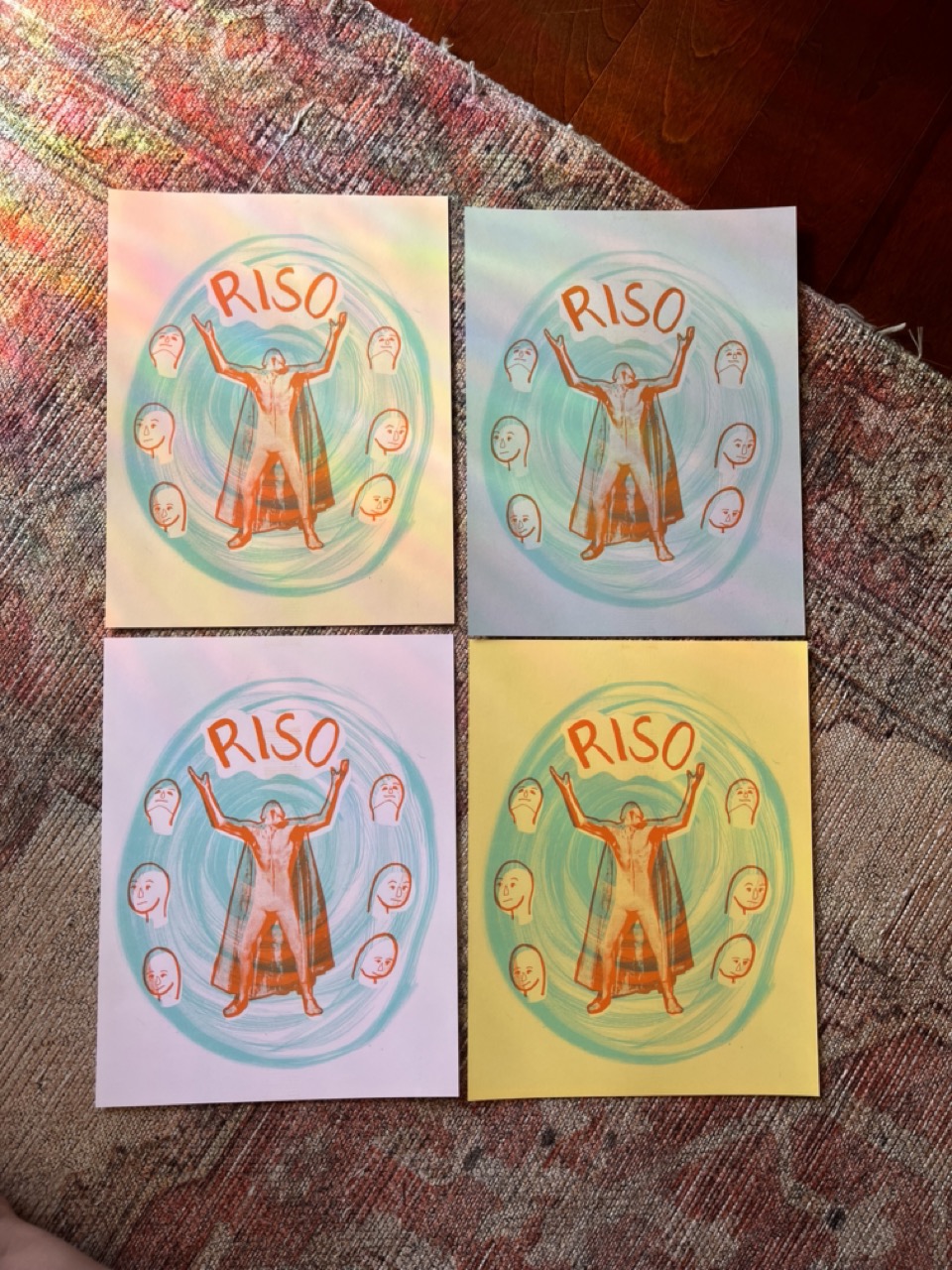
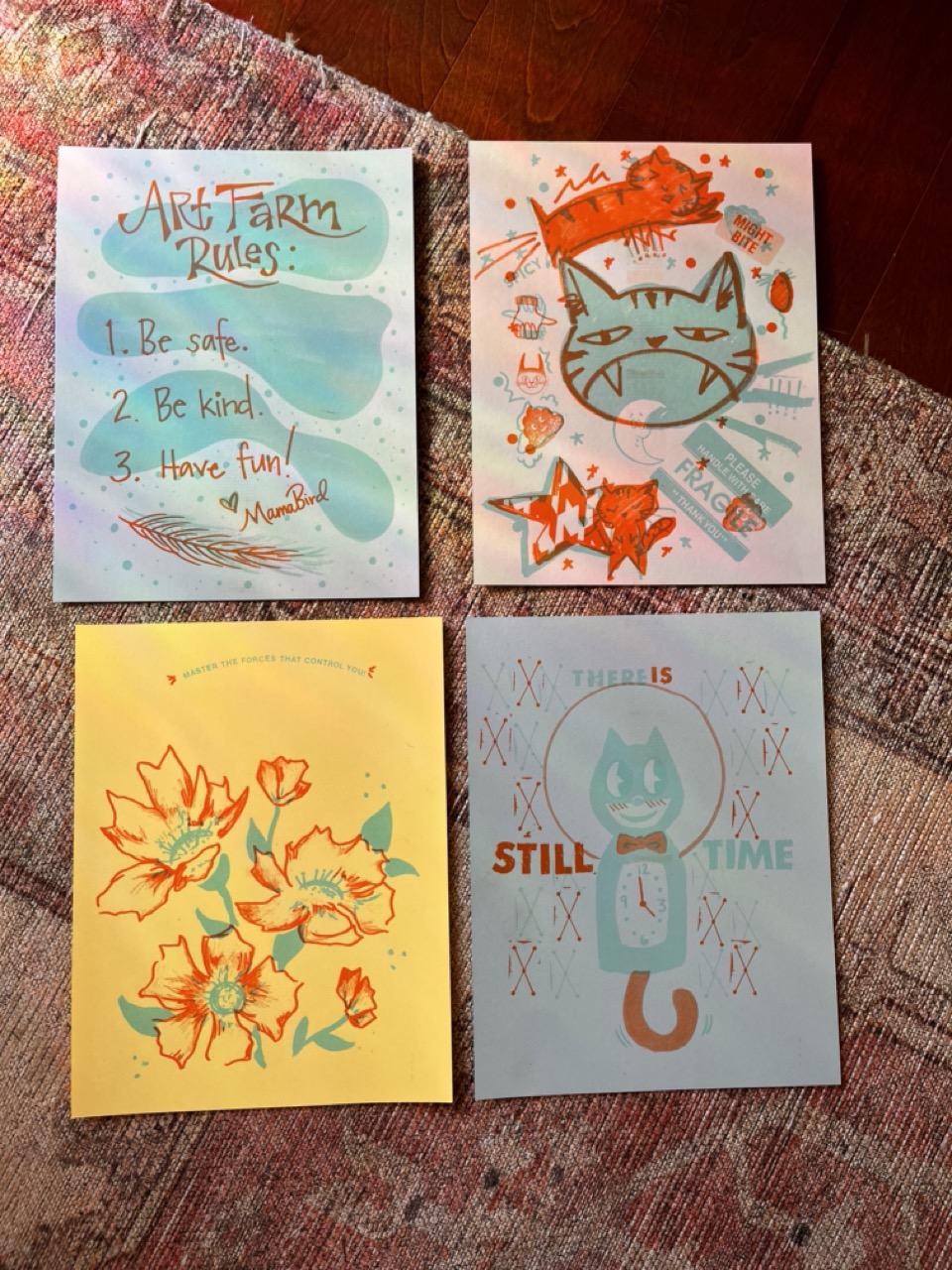
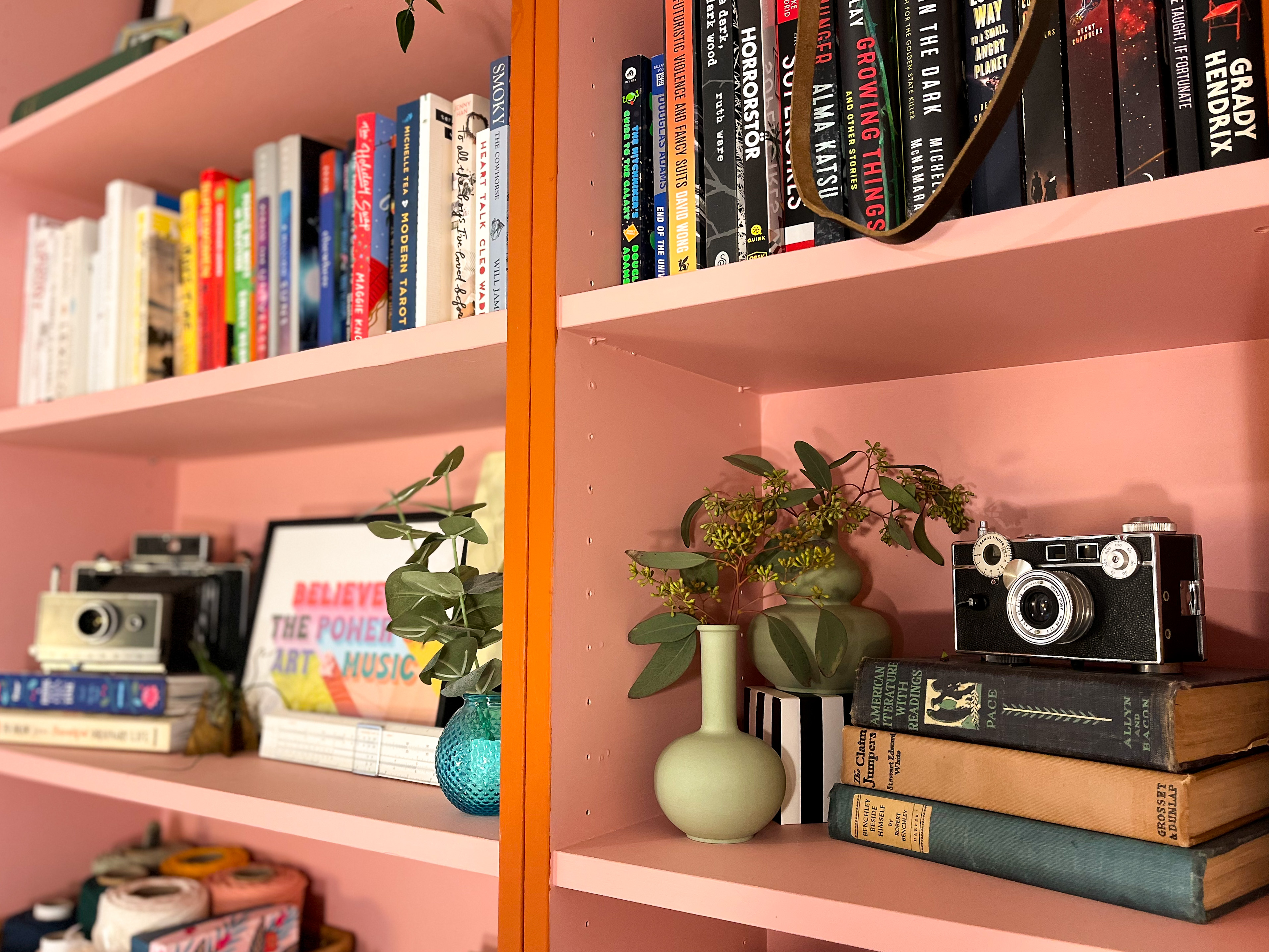
I have wound up with a collection of independent bookstore bookmarks.

I think it began when I was living in San Francisco and kept a running list of the bookstores I went to. I wanted to go to as many as I could. And of course I often bought a book and ended up with a free bookmark.

Eventually I had so many I decided I was collecting them. Eventually I collected so many I didn’t know how to store them.

So what if I were to digitize the bookmarks instead?

Check out my bookmarks page!

Allow me to re-introduce myself

I’ll be using AI on this website—to help me learn and experiment with using LLMs to build things outside of work. Mostly, this will be to add features and to maintain the blog.

I may use AI to help me brainstorm post ideas, help me edit my posts, or help me guide some stream of consciousness in a direction. But let me promise you now: these words will be my words. AI may augment my writing process, but it will not replace it.

It is important to me that these posts sound like you’re talking to me, Katie Hughes, a real thinking and feeling person.

You’ll also see my art on here! Most of my work is analog, and thus AI-free by nature. I’m not interested in generating art, generating logos, generating images. I am interested in learning analog techniques, boosting my graphic design skills, and developing my ability to draw.

I want to share the cool things I’m doing outside of the tech world here—because I want this blog to be for me as a whole person. Not as just a tech worker.

So as I revamp it, you’ll see a mix of art, life, AI thinking, side tech projects, side analog projects. It’ll be a mishmash. But know you’re hearing directly from me in my own little corner of the internet.

Katie's VSCode Cheatsheet

Assumptions!

Let’s get on the same page. This guide assumes you already have a prettier config and eslint config set up. This will be useful if you want to figure out how to make prettier and eslint Just Work™ in VS Code on save.

If you’re using only prettier and not eslint or eslint and not prettier, this should be easy to follow. If you’re using some other formatter/linter combo, this might still be helpful, but I’m not sure how you got here—welcome!

Extensions!

Alright, this is the easy part; let’s install some extensions! In the left sidebar of VS Code, you’ll find the Extensions tab. It looks like a square pizza with one slice being removed. Hovering over it, it says Extensions. Click that to search for the extensions you’re looking for.

Settings!

The easiest way to get to your settings has been the keyboard shortcut cmd+,. This actually works in all mac applications.

The settings for vscode come in a GUI but also as JSON. To access the JSON, while in the settings, find this file icon with an arrow in the upper right-hand corner:

Screenshot of VSCode's JSON settings icon

The alt text for the icon is “Open Settings (JSON)”. Clicking that icon will open your settings.json! Many settings can be set from the GUI, but some of the ones we’re dealing with today are only accessible by manually setting them in settings.json, so we’ll just edit there. (Plus, it makes copying and pasting nicer. But if you DO type it out, you’ll see some nice type-ahead added).

Eslint + Prettier!

First off, you’ll need to install these plugins:

And then I suggest the following settings:

{
  "editor.formatOnPaste": true,
  "editor.formatOnSave": true,
  "[typescript]": {
    "editor.defaultFormatter": "esbenp.prettier-vscode"
  },
  "[javascript]": {
    "editor.defaultFormatter": "esbenp.prettier-vscode"
  },
  "[json]": {
    "editor.defaultFormatter": "esbenp.prettier-vscode"
  },
  "editor.codeActionsOnSave": {
    "source.fixAll": true
  },
}

As you can see above, you can set a default formatter per language. If it isn’t working out as expected, I’ll often set editor.defaultFormatter on the top-level object to be esbenp.prettier-vscode. Of course, that makes every file use prettier, but hey, I’m usually working just in the JS ecosystem.

The setting source.fixAll can also instead be source.fixAll.eslint if it starts being too heavy-handed.

Other Plugins!

These are other plugins I almost always install when I’m using VS Code:

  • Alphabetical Sorter
    • I don’t use this consistently, but when I need it, it is so handy.
  • GitLens
    • I love seeing the context of when something was last edited and what that commit was while looking at code and trying to investigate an issue.

Other settings!

These are my favorite basic settings for VS Code:

{
  "editor.scrollBeyondLastLine": false,
  "editor.minimap.renderCharacters": false,
  "editor.renderWhitespace": "boundary",
  "editor.tabSize": 2,
  "editor.rulers": [80]
}

Painting Ikea Furniture

When it comes to home decor, being stuck inside our own spaces during a global pandemic has mostly driven each of us one of two ways: either wanting to eliminate visual noise around them OR amping up how their personality is reflected in their space. If you want to change something up, paint is always a really easy way! But when you have a laminate piece, popularly found at IKEA, painting requires a bit more prep.

What is laminate?

Remember when you were a kid and things would be laminated? It’s the same idea here—a laminate finish means there is a coat of plastic on top of usually a paper design on top of particleboard. For my 3 pieces, the paper was just white paper but sometimes it’s a faux wood design.

Plastic is hard to paint because it is a non-porous material. That is, there’s nothing for the paint to adhere to. So we gotta alter the surface!

Step 1: Scuff sand

The laminate surface is really smooth so step one of altering the surface is just honestly scraping it up. We have two options here:

  1. What I thought a scuff-sand was before I researched it for this post: I used a low grit (80) sandpaper and quite a bit of elbow grease to really make sure I was creating a rough surface for the primer to grab onto.
  2. What a scuff-sand really is: High grit (120+) sandpaper with a light touch. I’d try this on my next piece to see how it changes things!

Step 2: Primer

Sometimes primers are to help conceal a base color but in this case, we’re adding extra grippiness for your final paint! You want to look for a bonding or adhesion primer (from what I can find it seems to be two words for the same thing).

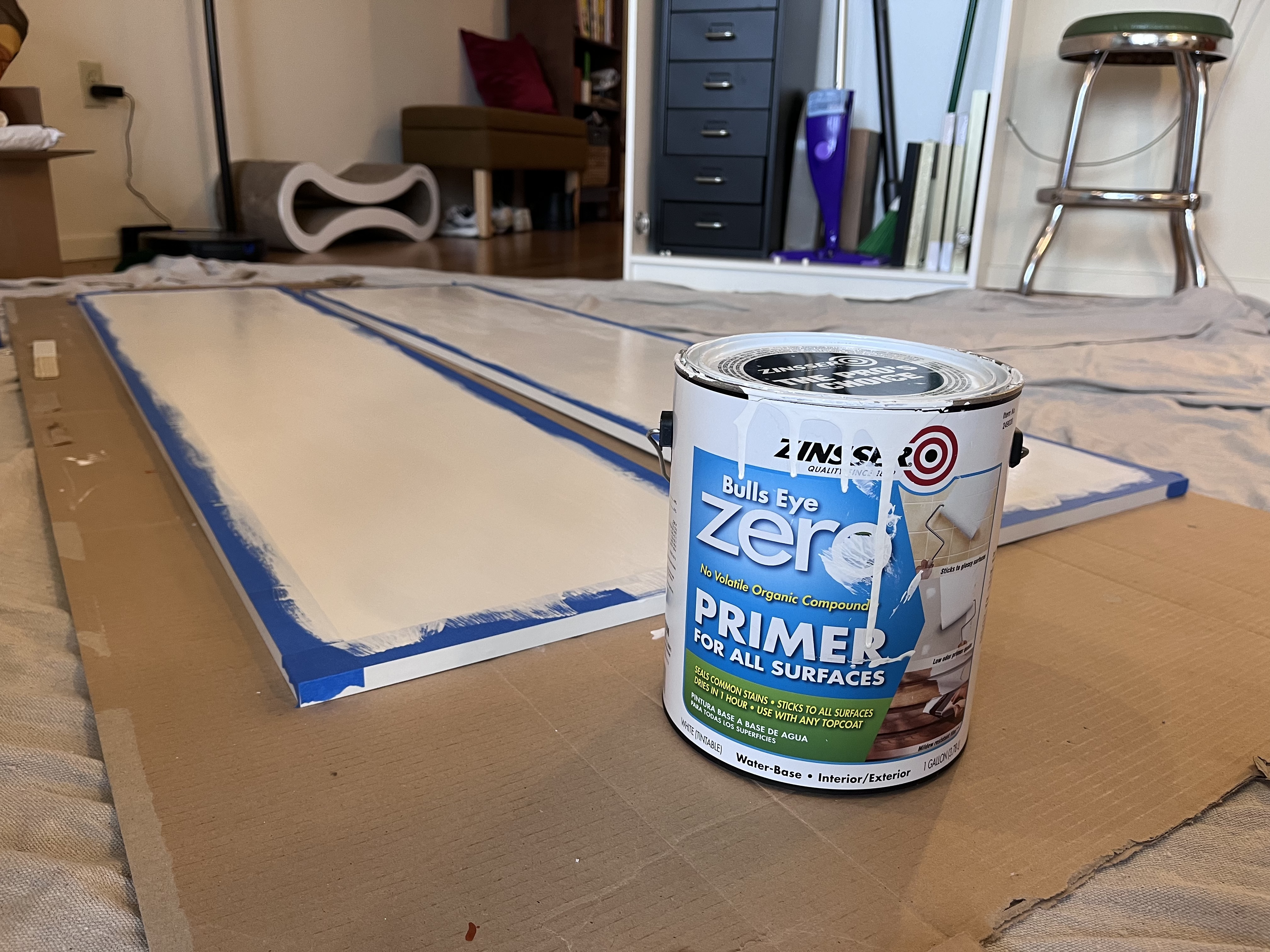
I was able to find Zinsser Bulls Eye Zero primer at my local hardware store. Zinsser Bulls Eye 123 also gets a good rep online.

Two tips here:

  1. I suggest doing 2 coats of primer. It’s hard to tell with white primer on white laminate, but I noticed after the first coat of primer there were some parts that still repelled the primer a little bit—parts where the laminate still shone through. Two coats provided the coverage I needed!
  2. Wait a LONG time between coats. This is the foundation and each coat seals in the previous layers even more—meaning that if the previous layers haven’t fully cured, they probably never will. This is usually what causes a painted surface to be easily scuffed. My primer said to wait three hours, so I did that on my first piece and it really wasn’t enough. I then started waiting 5 hours and was really happy with the results.

Image of Zinsser Bulls Eye Zero primer with primed door in background

Step 3: PAINT!

Now that you’ve put hours into prep, it’s time to do the fun part—applying the color! No extra tips for this step that you haven’t already read. Waiting 5 hours between each coat is beneficial here as well.

Number of coats is up to you, with two coats minimum. In my experience, two coats is fine for lighter colors and I’ve done up to four for darker colors.

Before putting anything on the painted piece of furniture, especially another painted surface, I like to wait a solid 2-3 days to really make sure things are cured.

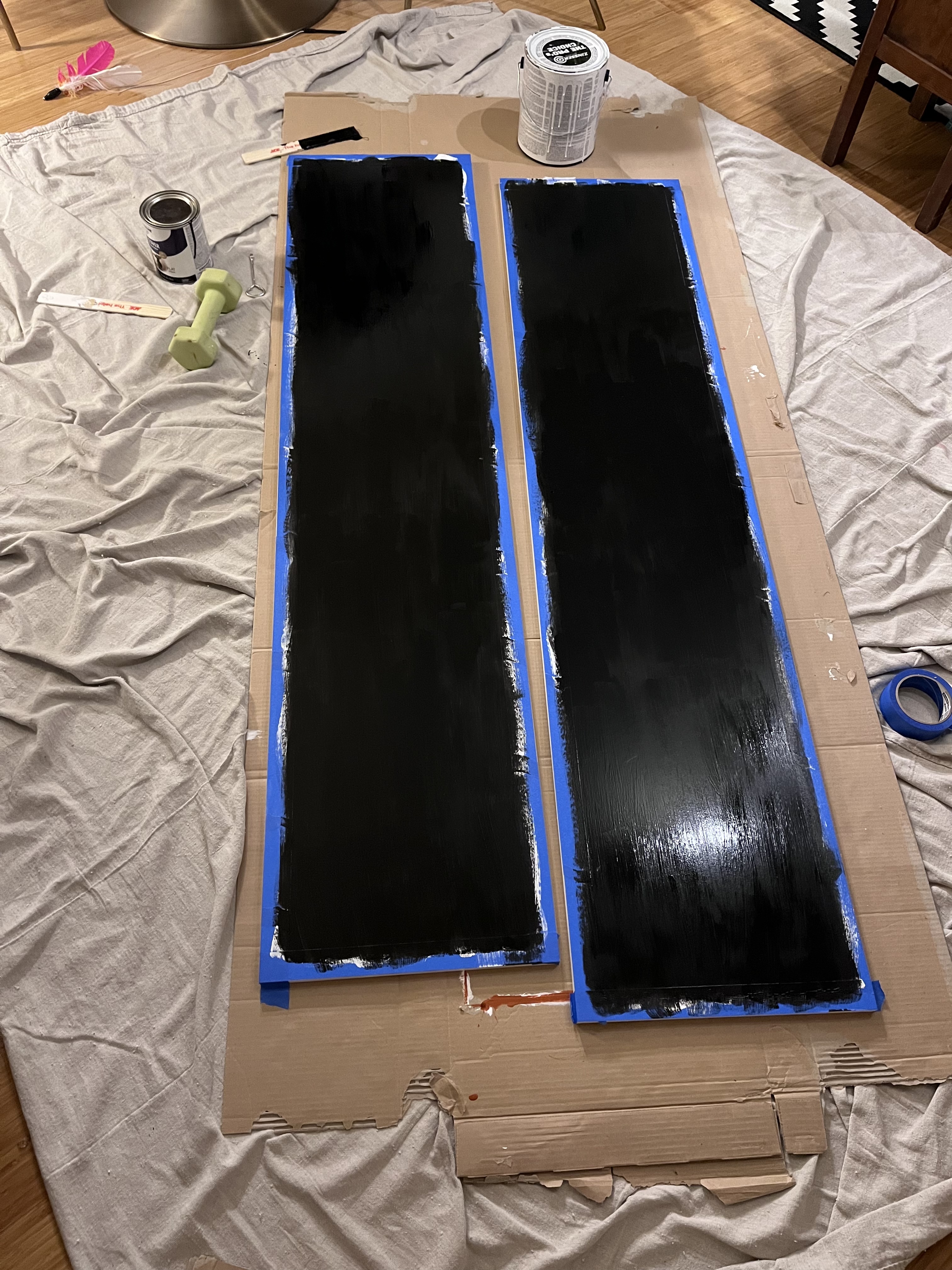
Two closet doors painted black

Left as an exercise to the reader

One question left to you is do you want to paint your piece while it is assembled or while it is disassembled? Here’s what I’ve found:

  1. Shelves are easier to paint while in the piece of furniture. Think about it: you’ve painted 2 layers of primer, and at least 2 layers of paint, and then double that for both sides of the shelf. So perfectly sized shelves won’t fit! On top of that, if any paint drips down the sides of your shelf, that adds an extra layer. Painting the shelves in does fix them pretty permanently BUT it eliminates the need to sand them to make sure they fit again.
  2. Doors are easier to paint off of the piece of furniture. This is less complicated to explain—laying the door on the ground (or propped up on something) makes it easier to access all the sides you need.
  3. And then my least opinionated of these: I’ve been painting the body of the furniture fully assembled. This is partly due to the shelves rule, these pieces are made to slot together at the current thickness that they are and adding paint may change how easy it is to put things back together. But it’s also due to the fact that I’m painting inside my apartment with a cat roaming around and being able to paint something while it is standing up just saves floor space.

Areas to explore

Every piece I do, I learn something and adjust it for the next time! Now that I’ve done three laminate pieces, there are a few things I want to alter and experiment with:

  1. A proper scuff-sand. Like I said above, I learned while researching this post what an actual scuff-sand is. I had previously just kind of guessed but now that I know, my next piece will be prepped with fine-grit sandpaper and a light touch!
  2. Using a self-leveling additive. This is something I’ve seen getting popular on Instagram & tiktok as a way to eliminate brush strokes. It basically thins the paint out a little bit so the paint has a chance to spread out to a smooth surface before painting. (Note: you can skip this if you sand between coats! But since it is me and my cat inside an enclosed space, we don’t really do that.)
  3. Adding a top coat. While my painted laminate is getting more durable, from what I can tell adding a top coat (or sealer) will take it to the next level. They dry into a much harder surface than your traditional paint does. Based on reading a list of The Best and Worst Sealers for Painted Furniture from Lovely Etc., I’m very curious to try General Finishes High Performance Top Coat.

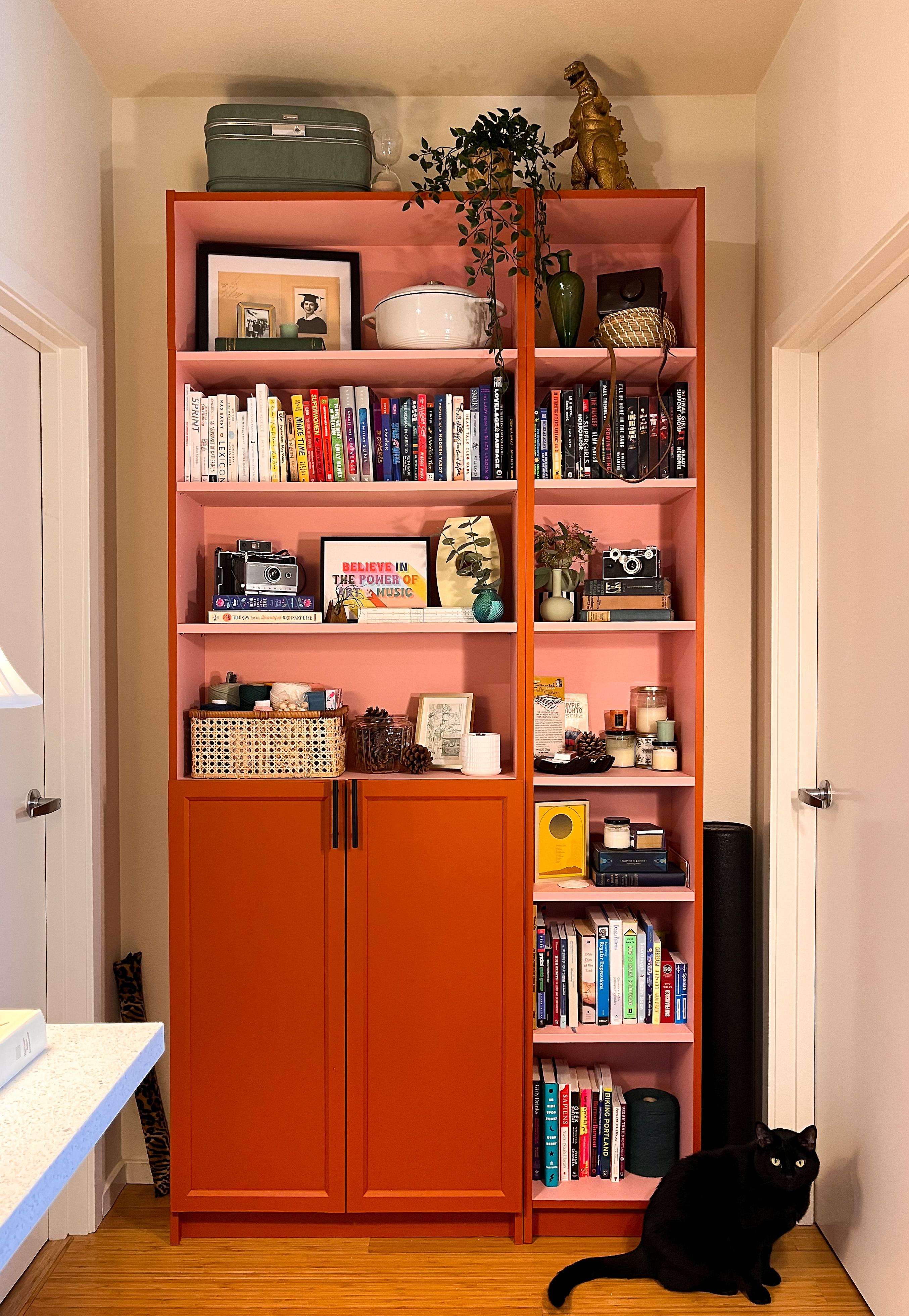
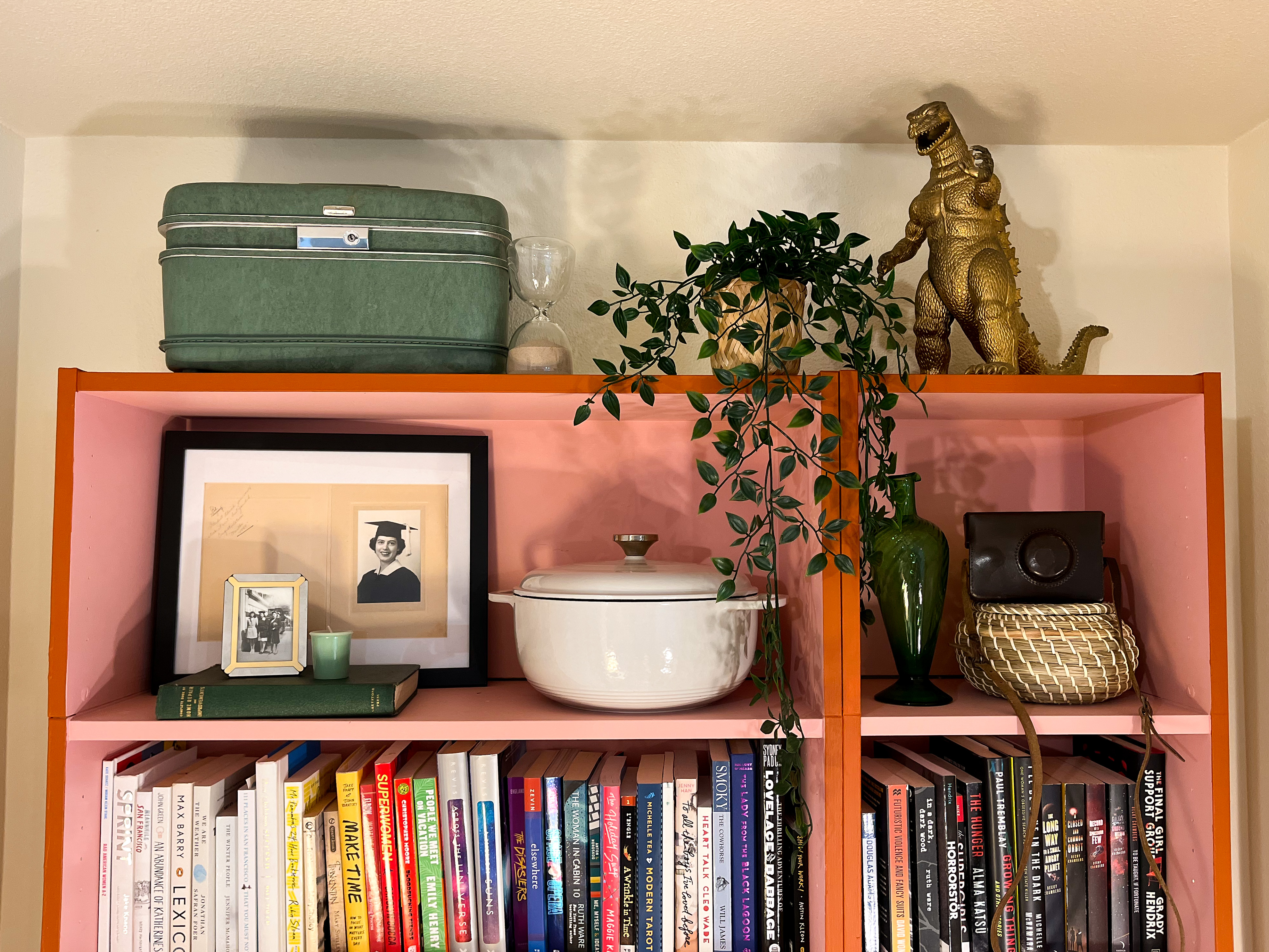
Final results

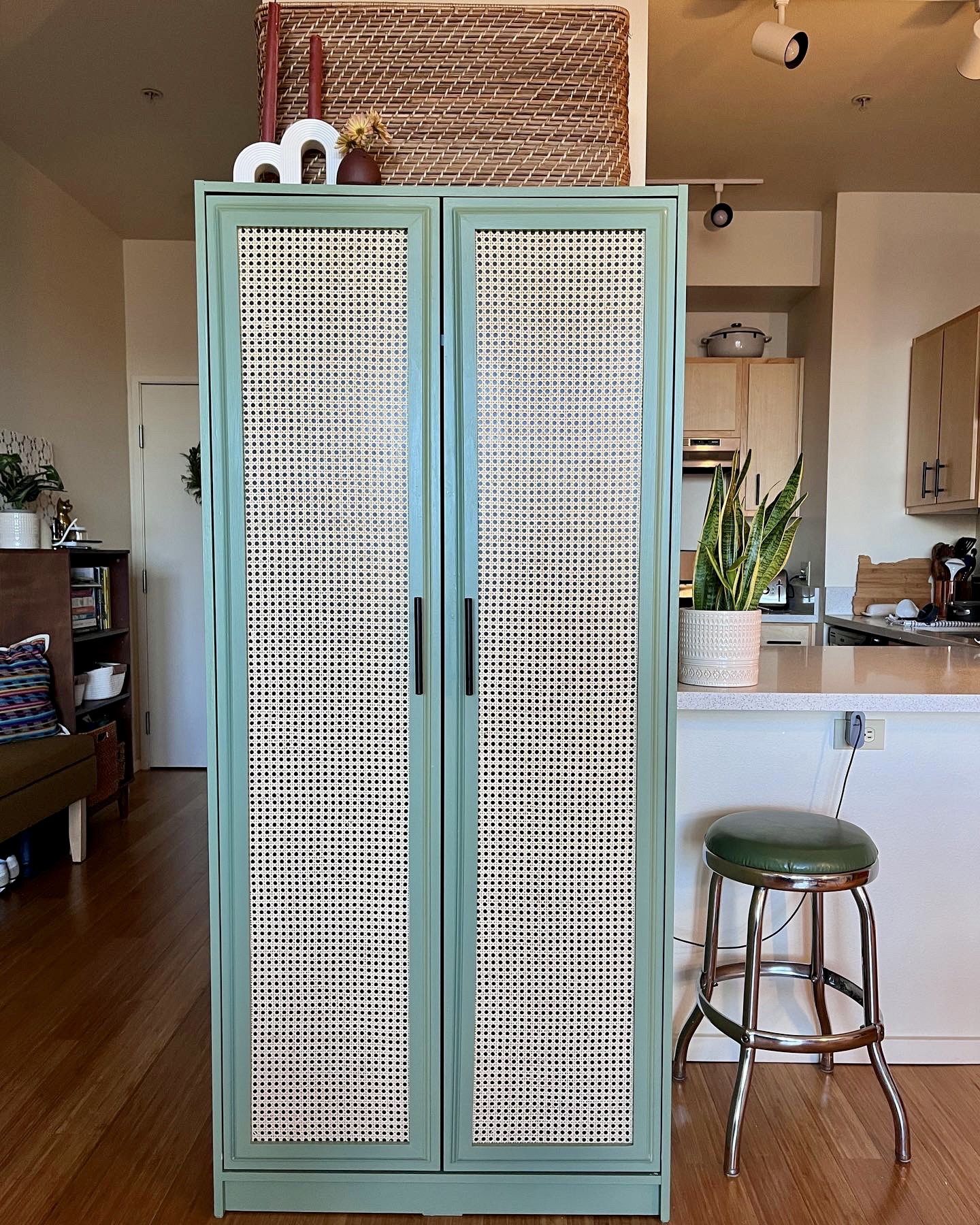
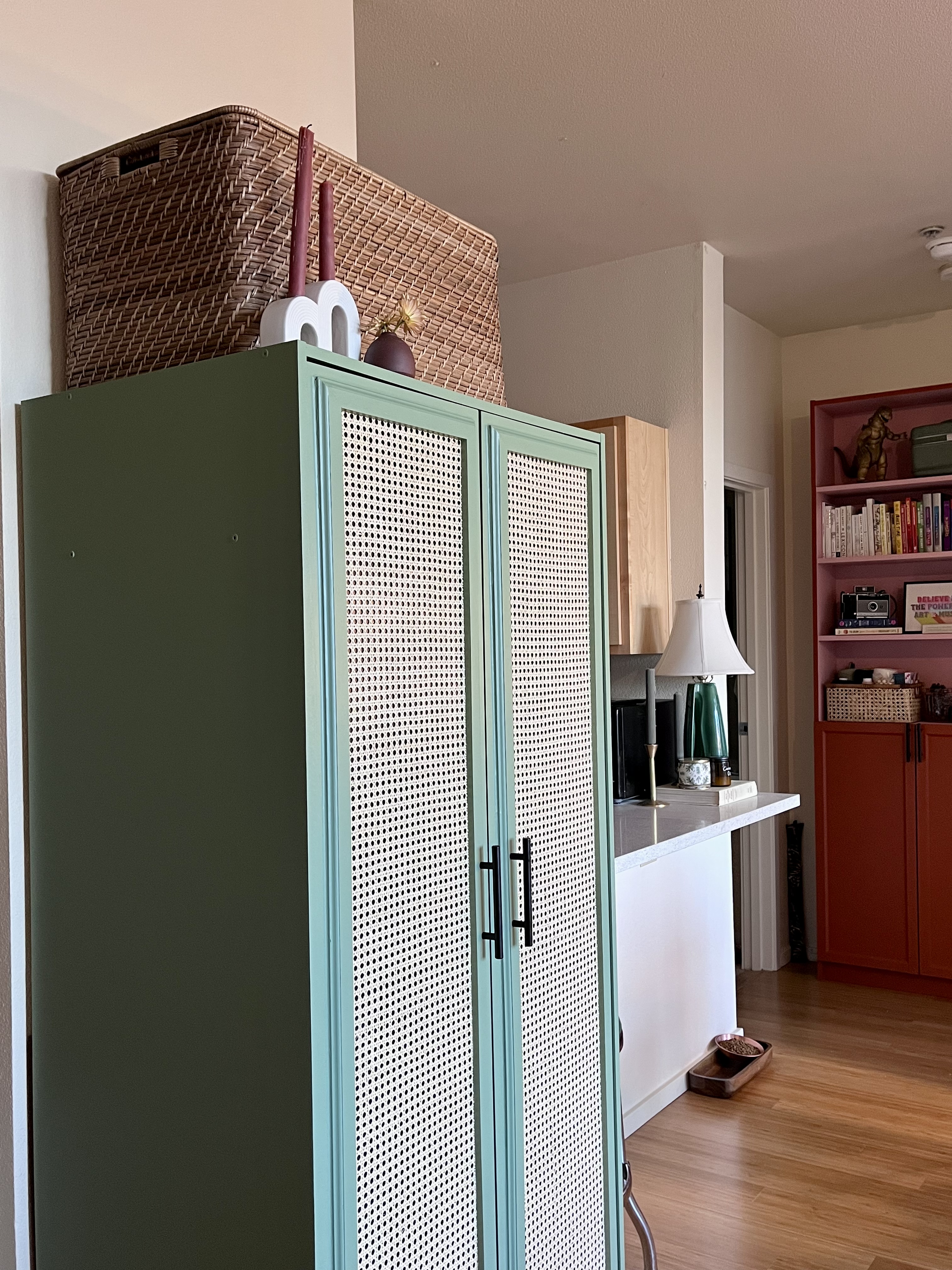
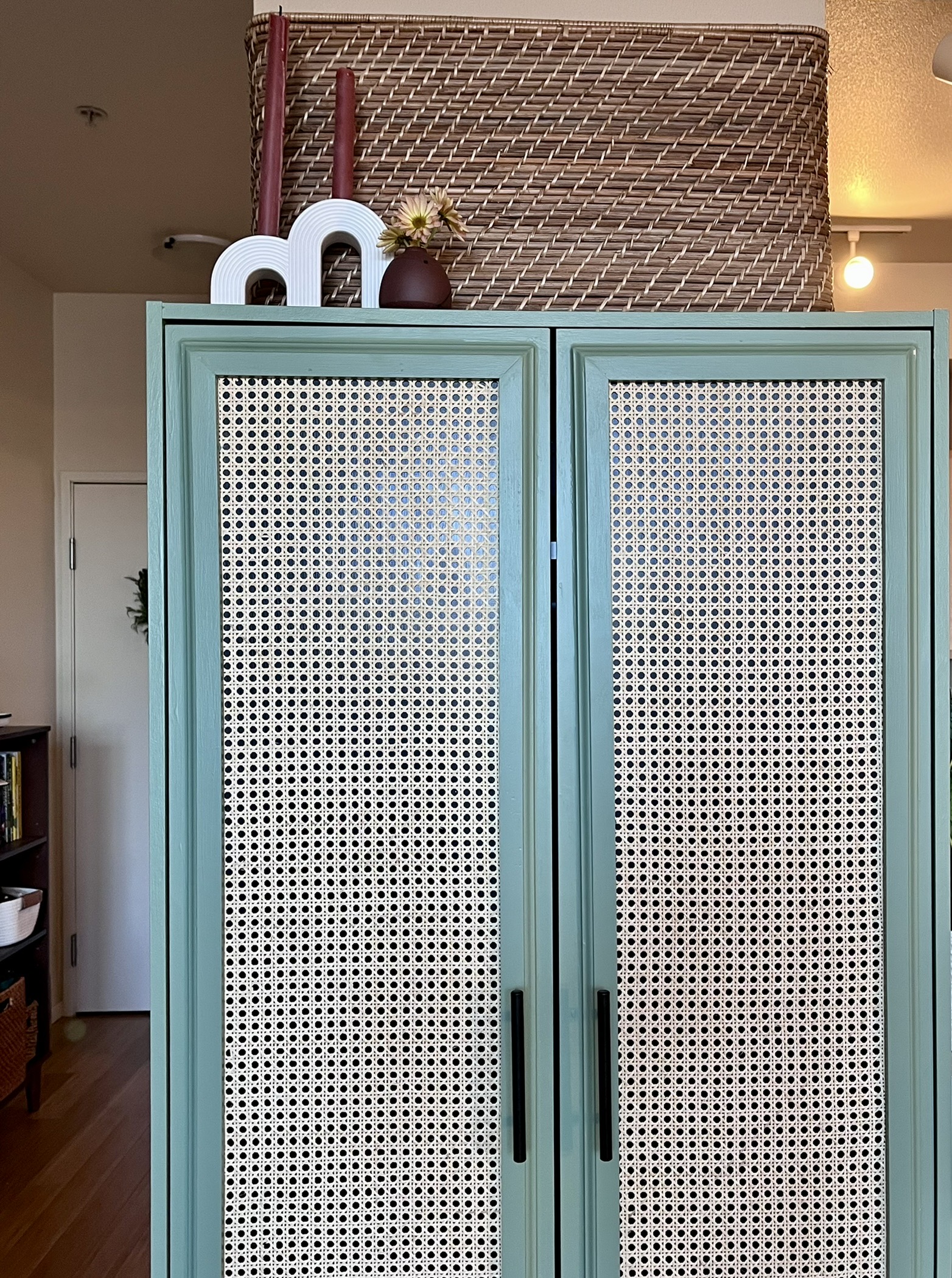
The three pieces I have so far painted have been a Billy Bookcase, a Narrow Billy Bookcase, and a 2-door Kleppstad.

With the Kleppstad, I went beyond just painting. I used trim and cane webbing to give it a few extra details. No jigsaw cuts here, just black paint to create a dark background!

Image of Zinsser Bulls Eye Zero primer with primed door in background

Image of Zinsser Bulls Eye Zero primer with primed door in background

Image of Zinsser Bulls Eye Zero primer with primed door in background

Image of Zinsser Bulls Eye Zero primer with primed door in background

Image of Zinsser Bulls Eye Zero primer with primed door in background

Image of Zinsser Bulls Eye Zero primer with primed door in background

Designing as a crafty dev

If you’ve been here before, you know I’m a frontend developer! If not, welcome to my blog! Like any dev, it’s hard to resist that well-known itch to re-do my personal website. So here we are. I’ve given my website a facelift for two reasons:

  1. I want to support more blog post topics than just tech.
  2. I want to use Next.js because that’s what I’ve been using at work.

I’ve always been a crafty person with an eye for design. I designed all previous iterations of this website! But I’m by no means a graphic/web/frontend designer, so it is super easy to get overwhelmed when planning out a new design.

Why is it so hard to get started? Well, frontend design is honestly blank canvas/page syndrome to the max. When painting, you at least have a limited color palette; or when decorating a room, you have a budget.

When designing a website, it is easy to be overwhelmed because you have virtually every color and font and every way of configuring that content that you can imagine.

Get some inspo

Taking inspiration from how I approach planning a room, my first step was creating a Pinterest board and pinning anything I liked. Fonts, layouts, colors, etc. This helped me see everything I was drawn to all in one space, identifying the patterns that emerged.

Looking in my closet and around my apartment, I obviously love greens and creams together. So obvious, in fact, that one day in a 1-1, I realized I was on a dark teal couch with a dark green sweatshirt with my pale complexion holding a mug with a dark teal/green dipped bottom and creamy top. When you start paying attention, you’ll see patterns pop out.

Mood board resources:

Narrow it down

We’ve gone from staring at a blank screen to staring at pictures and colors and fonts that we like. So let’s key into our patterns!

Colors

We just made mood boards with colors, so start with the color combos that pop out to you there, whether you saved actual color palettes or just images. We’re going to aim for 5 starter colors:

  • Background color (Usually white or off white)
  • Text color (Usually black or off black)
  • Main color (Pick your favorite color!)
  • 2 Accent colors (You can choose more if you want, but 2 is very doable. These should make your main color look its best!)

And then, let me introduce you to your new best friend: Coolors.co!

Coolors.co

First, go to coolors.co/generate. If you have any colors for which you know the exact hex, go ahead and input those and lock them in. Then have at it with the space bar to auto-generate color palettes! It looks like coolors does a good job of giving you a mix of complementary, contrasting, and triadic color schemes. If you’re not set on the exact hex code, play around with the colors you started with. You never know what you’ll find!

When playing around with the hues and tones, I suggest using HSL. This is a color code based on Hue, Saturation, and Luminance. HSL is much closer to how we think of color mixing, thanks to elementary school, than something like RGB.

Quick accessibility note

Now that you’ve found some colors you like, let’s refine them while thinking about accessibility. Here are your steps

  1. Go to https://webaim.org/resources/contrastchecker/
  2. Test 1: your text color on your background color, make either darker or lighter as needed
  3. Test 2: your main color on your background color, again adjusting & checking test 1 if you change your background color
  4. Test 3: either your dark-ish or black-ish color on your main color as a background, think CTA buttons needing text

Fonts

First, look at your mood board and notice what fonts you saved have in common. Are they serifed (have feet)? Are the sans-serif (no feet!)? Are they more blocky? Handwritten? We’re going to choose 3 fonts here:

  • Logo font
  • Header font
  • Base (paragraph) font

I didn’t use the same font in my logo as I did in my header because I read a blog post saying that you need to keep your logo distinct. But that’s up to you!

In a book, paragraph fonts are usually serifed. The feet of the serif drag your eyes across. They provide movement. Sans-serif fonts tend to be a little crisper on a screen because a consistent stroke is easier to render than a tapering edge. Do you want people to stop and take notice? Or sit and read?

You can find fonts anywhere, but I’d recommend skimming through Google Fonts. Their fonts are free and open source and are super easy to include in your website. They are also pretty widely available in other systems, like Figma! If you want help narrowing down options, Typewolf has a great guide on Google Fonts.

My “brand name” lends itself easily to an emoji. I actually had the emoji in mind when brainstorming a consistent handle across platforms. So I’ve always used ✨ as part of my branding.

I used Canva’s logo templates to play around easily and see what I liked. I keyed in on a design, but with Canva, you don’t own your logo. So I keyed into the design I liked the most and used it as inspiration in Figma.

In Figma, I developed a logo icon and a logo with my name in it. The icon lends itself to favicon use, and the full logo lends itself to the header. I then made heavy use of Figma allowing you to right-click and copy as SVG to save my designs!

Swatch it all together

Using Figma still, I put my logo icon, my full logo, and a swatch of my colors and fonts together. I want to pause here and say I never really used Figma before this project, so I don’t know all of the ins and outs, just kind of futzed with it until I had something that looked reasonable.

unorganized screenshot of my logos & font/color swatch

Layout

Alright! We have colors! Fonts! A LOGO! We’re ready to go now, right? I really want to plead with you, developer, that you should spend the time actually laying out your pages in Figma or on a sheet of paper or whatever. Creating a layout isn’t as easy as it seems when you have no plan. Again, we’re dealing with the ultimate blank canvas syndrome.

Did you save any layouts on your mood board? If you didn’t, surf around the ‘net now and find similar websites to yours. Go on some website template services and see how they layout content. Don’t copy directly but take inspiration.

Real content

You know how when you were a kid, and you drew a speech balloon and tried to fit text inside of it only to find out you didn’t leave enough room? That’s going to be you now if you don’t take the time to think through your real copy.

Real talk? Step all the way away from your design editor. Just do this in a document using bullet points to represent different sections, side-by-side sections, or links to other pages.

All together now

Once we have realistic content and have decided on colors, fonts, and logos, it’s time to put this puzzle together! Make a layout for every page you intend on having, no matter how simple that page will be. I promise taking the time to do all of this planning will lead to a better thought-out website, and it will make your coding process more straightforward.

screenshot of all of my layouts planned in figma

You got this

This whole thing takes time. But once you have a solid design plan, it will be worth executing it and making it live. For me, it took around 25 days to go from nothing to deploying on glitteringkatie.com.

When I decided to redesign, I was ready to immediately get coding. But I made myself take the time to really think through my design. Honestly, once I had a design, I didn’t even want to code at that point. Ultimately the motivating factor for me wasn’t, “Wow, I’ll have an even nicer tech blog!” Instead, it was, “Wow, when I’m done, I’ll have better functionality to support posts about furniture flipping and random crafts!” If you’re putting in this hard work, know why you are doing all of this work!

I hope something in this blog post helped you! And stay tuned for some non-tech content in the future!